Free project collaboration tool · Web · Windows · macOS · iOS · Android
Scattered work,
in one place, together.
Announcements lost in group chats, schedules living in spreadsheets, files bouncing around by email.
PLUM brings your project's updates, tasks, schedules and files into one screen.
$0 to use · we'll even set it up for you, free
Why a collaboration tool
When tools scatter, work scatters too
Jumping between chat, spreadsheets, email and cloud folders makes it hard to answer “where are we now?”. PLUM connects your team's conversations, tasks, schedules, files and status in one place.
What changes with one collaboration tool
- Announcements buried in group chatsProject feedUpdates, meeting notes and files per project — with @mentions and pinned posts
- Schedules run on spreadsheetsTasks · GanttEvery change shows up for everyone instantly, including why a deadline moved
- Files passed around by email and USBDriveAttachments collect themselves, with versions and sources
- Half a day writing the weekly reportDashboard · Weekly reportProgress, delays and next week's work are summarized automatically
- Assigning work by gut feelingWorkload heatmapTask size and time off are counted so you see overload before it happens
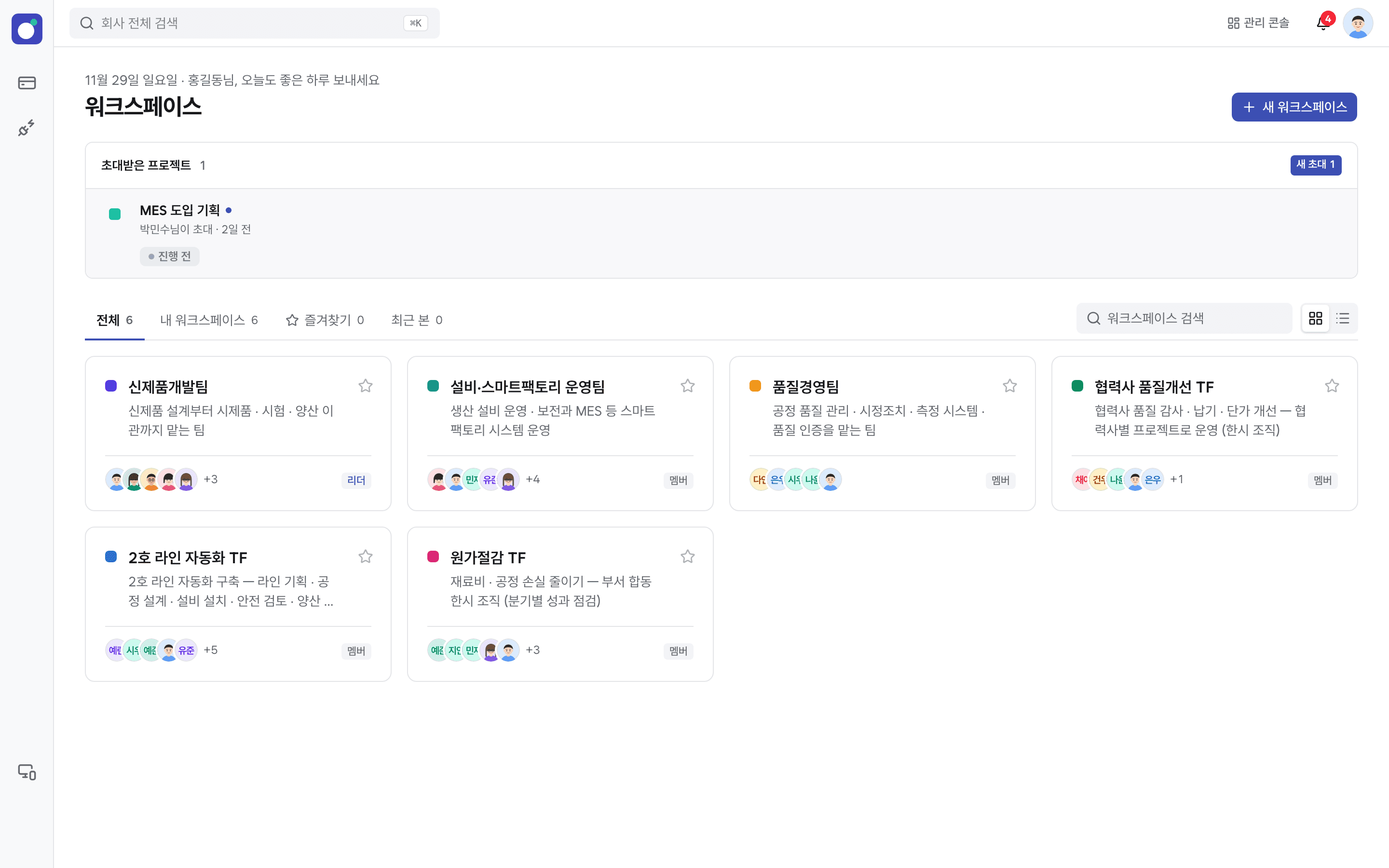
Workspaces
Group projects by team, department or client
Never get lost as projects grow. Each workspace shows active projects, average progress and overdue tasks on one screen.
- Company
- Workspace
- Project
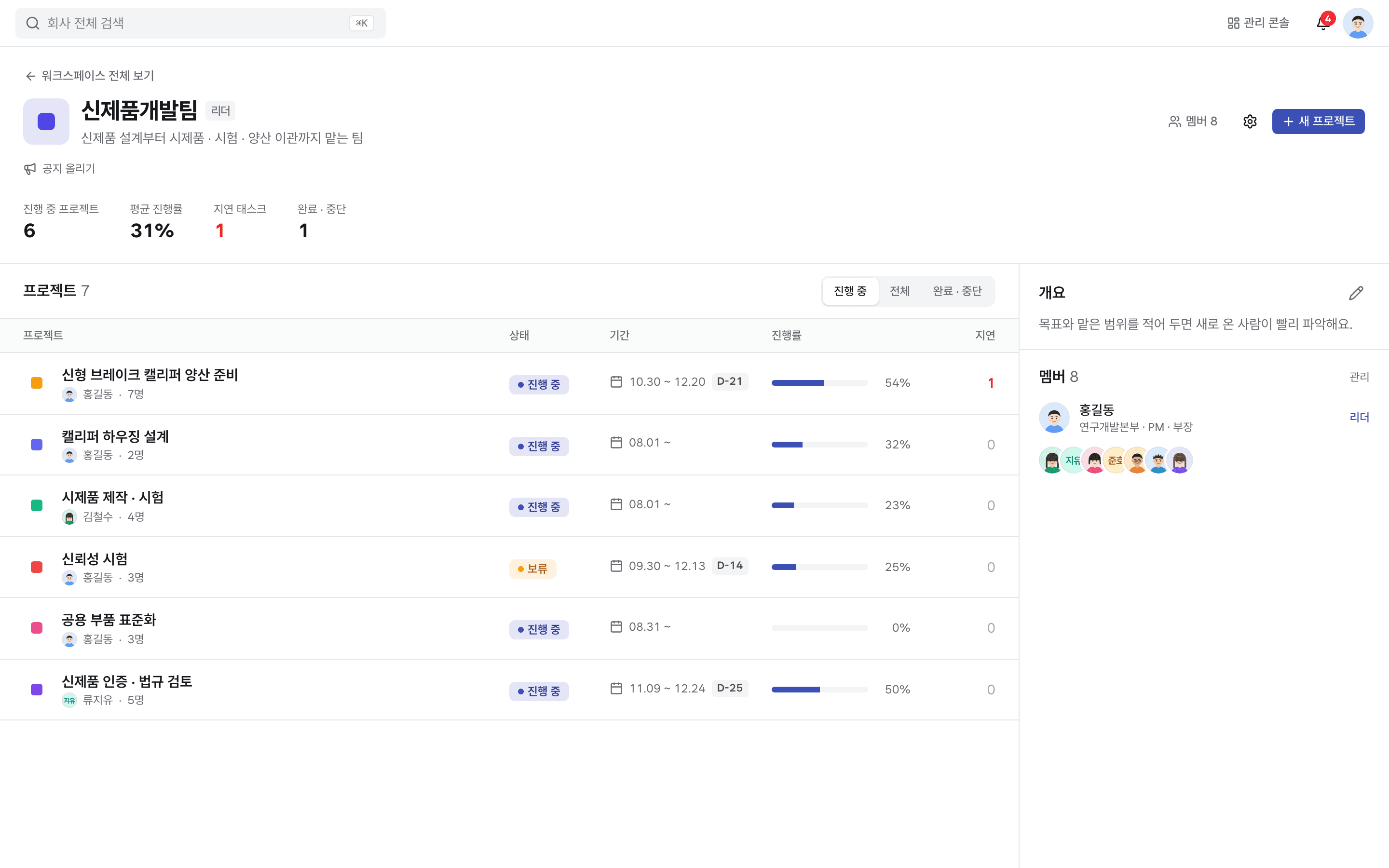
Numbers at a glance
Active projects · average progress · overdue tasks · completed
Project table
Status, dates, progress and delays — one row per project
Intro · notices · members
Leaders manage the workspace intro, notices and members
Project feed
Announcements, meeting notes and files — post once
Every project gets its own feed. Post an update and everyone is notified; keep the conversation going with comments and reactions.
- @mention the people who need to see it
- Drag and drop files to attach them
- Link posts to tasks so they become task history
- Pin important announcements to the top
Tasks
One set of tasks, three views — your way
Planners shape the structure in a mind map, doers track status on a Kanban board, PMs manage dates on a Gantt chart. Change it once and every view updates.
Kanban — create, then drag to done
Add a task and drag the card to another column to change its status. Your teammates see it right away.
Gantt — drag bars to reschedule
Move a bar to change the schedule. Pushing a deadline asks for a reason and lets the owner know.
Mind map — big work into small tasks
Drop a card onto another to make it a subtask. The whole project's structure and progress fit on one page.
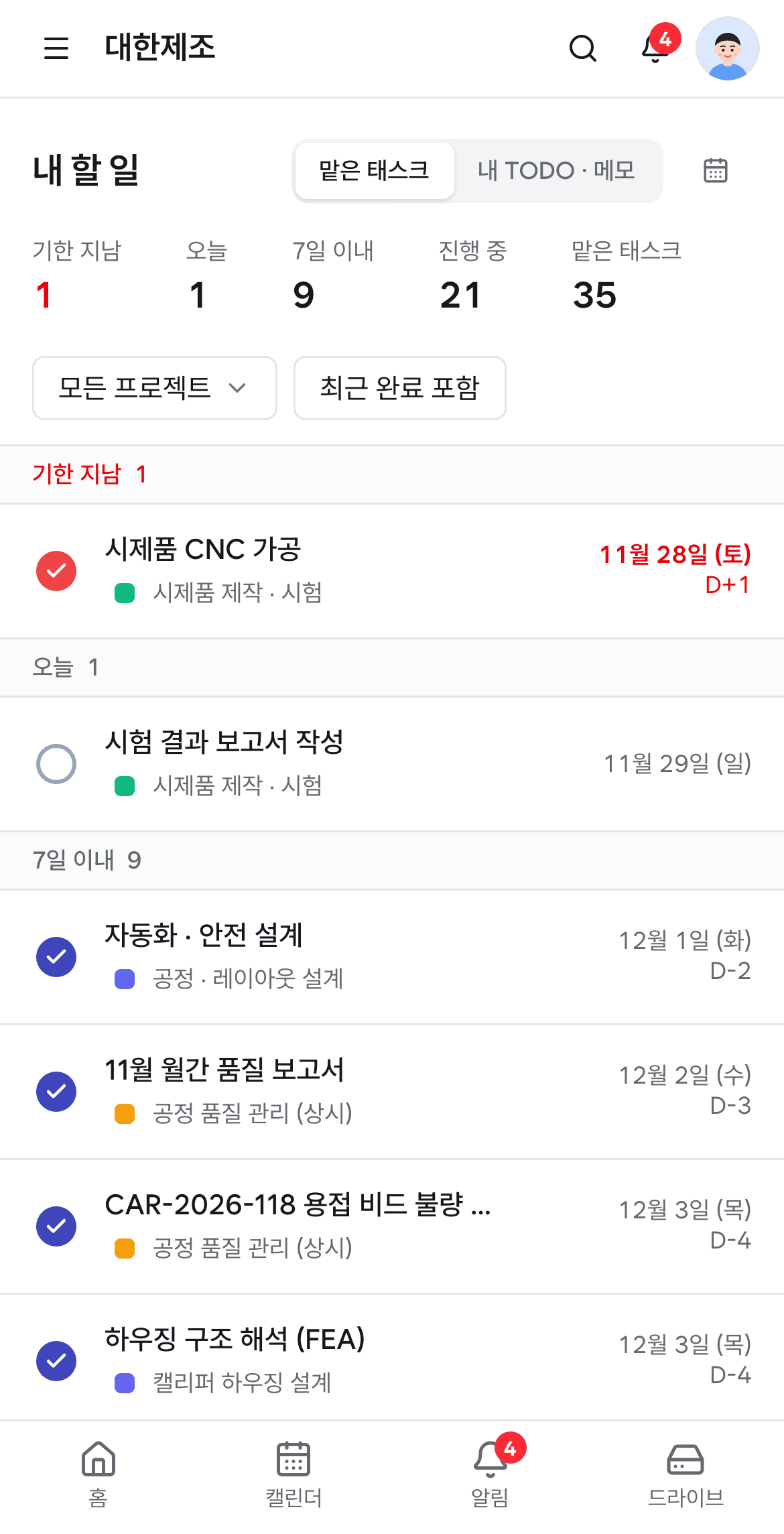
My tasks
What I need to do today, across every project
Every task assigned to you, from every project you're in, sorted by due date. Overdue work stays on top in red.
- Split into overdue · today · next 7 days
- Private to-dos and a work memo
- Filter by project · include recently completed
- Notified the moment you're assigned or something changes
Calendar
Company and project schedules on a single calendar
Task dates and deadlines from every project, together on one calendar. See who's busy when, and what wraps up this week.
- Month, agenda and by-person views
- Filter by member, project or status and change the color key
- Company calendar and project calendars
- Reschedule in Gantt — the calendar is for viewing
Drive
“Where's that file?” No need to ask anymore
Files posted in feeds and tasks collect in the project drive automatically — along with which post or task they came from.
- Find files by uploader, date or file type
- Version history (v1 · v2 · v3) and trash recovery
- Preview images, PDFs, Word documents and videos
- Company-wide storage at a glance
Dashboard
A status board that replaces the status report
Overall progress vs. schedule, overdue tasks and workload by person. One click turns it into a weekly report.
- Instantly see whether you're ahead or behind schedule
- Auto-generated weekly report — copy as text into email or chat
- Weekly completion trend · tasks that keep slipping
- CSV (Excel) export · print to PDF
Members & workload for PMs
See who's busy and who has room — in numbers, not guesses
Workload is measured by task size, not task count. Work from other projects and time off are included, so the truly overloaded people show up first.
- Available under 80%
- Balanced 80–100%
- Overloaded over 100%
- Load per member over the project period · this project vs. others
- Click a cell in the weekly heatmap to reassign on the spot
- See skills and availability when choosing PMs and members
- Time off and half days flow in from your HR/attendance system
- Load is visible only to PMs and project admins
Org chart · member management
Your org chart as it is — invite whole departments
Manage departments and members on one screen. When adding people to a project, pick a department from the org chart and invite everyone at once.
- Department tree, department heads and multiple roles
- List and chart views, search by name, department or title
- Add, move and staff departments in the admin console
- Add project members by department
Same screen, everywhere
In the office or on site — the same project
Pick up the same project on the web, desktop app or mobile app. Reply to a comment notification from your phone while you're out.
- Web browser
- Windows · macOS app
- iOS · Android app

Admin · Security
Roll it out company-wide, keep admin light
Org chart · invite by department
Bring your org chart as it is and invite whole departments to projects.
Role-based permissions
Company admins, workspace leaders, members and guests. External partners only see the projects they're invited to.
Private projects
Sensitive projects like HR or contracts are visible only to their members.
Audit log
See who changed what, and when, in the admin console.
Storage management
See company and per-project usage, with alerts at 80% and 90%.
On-premises install
If security rules rule out the public cloud, install PLUM on your own servers.
FAQ
Questions?
Is PLUM really free?
Yes. There's no usage fee, and onboarding consultation and initial setup are free too.
Which devices does it run on?
Web browsers, the Windows · macOS desktop app and the iOS · Android mobile apps — all on the same projects.
Can we install it on our own servers?
Yes. If your security policy rules out the public cloud, PLUM can be installed on-premises.
Can we work with external partners?
Invite partner contacts as guests — they only see the projects you invite them to.
Isn't it hard to move off spreadsheets and chat apps?
During the free setup we configure your org chart, workspaces and accounts for you. Your team just accepts the invite and starts.
Is it available in English?
Yes. The app supports both Korean and English.
Free onboarding
PLUM is free. We'll set it up for you
This isn't a sales call. It's a request so we can set PLUM up for your team, free of charge. Tell us your team size and how you work today, and we'll get back to you within 1–2 business days.
- Usage fee$0
- Initial setupFree
- ConsultationFree
- 1Send a requestJust fill in the form below. No pushy sales calls.
- 2Free consultation · demoWe'll walk you through it based on your team.
- 3Free setupWe set up your org chart, workspaces and accounts for you.
- 4Start workingOnce setup is done, just invite your team.